Tracking Across Iframes
A familiar report: the ad campaign drove traffic, the booking system shows sales, and GA4 credits almost none of them to the campaign. The tags fire. Tag Assistant shows a healthy container. Nothing looks broken, yet the numbers don't add up.
Most of the time the cause sits between two pages that share one screen. The checkout or booking form runs in an iframe served from another domain. The visitor sees one page. The browser sees two separate sites, each with its own dataLayer, its own cookies and its own idea of who the visitor is and where they came from. Events pushed inside the iframe never reach the host page's GTM. The campaign parameters on the landing URL often don't reach the iframe either. And if the vendor's own analytics reports to the same GA4 property, the booking can be counted twice, once from each side.
I built Analytics Workbench to make that gap visible and to turn what it finds into fixes someone can act on.
What it is
Analytics Workbench records what a page and every frame inside it actually do: dataLayer pushes, page loads, clicks, and the requests that leave the browser for GA4, Google Ads and Meta. It then checks that record against how GTM, GA4 and the ad platforms expect a purchase flow to look, and explains each problem with where it lives and the steps to fix it.
It runs in two places. The full tool runs locally and controls its own Chrome window, which is what lets it see inside cross-domain iframes and capture network requests. A smaller online version runs entirely in the browser, with the limits that implies.
Not a replacement for Tag Assistant
Tag Assistant is the right tool for debugging a GTM container you manage. It works because GTM's own code is already on the page: Tag Assistant opens your site with a debug parameter, GTM switches into preview mode, and reports every tag, trigger and variable back to the Tag Assistant window. For full detail you need Preview access to the container.
The workbench answers a different set of questions:
- Which tags fired, on which trigger, with which variables? Tag Assistant shows this in detail, with container access. The workbench reads the published container and doesn't replace Preview.
- What did the page and each iframe push to their own dataLayer? Tag Assistant shows each frame whose container or Google tag it can debug; iframes need its Chrome extension. The workbench records every frame, cross-domain included, even a vendor iframe whose container you can't open.
- Did an event cross from the iframe to the host page? Tag Assistant can show both sides when it can debug both containers, and you match them up. The workbench puts both on one timeline, each event labelled by frame.
- Did the campaign survive the trip into the iframe and onto the purchase? The workbench checks this directly, from recorded values, not from the URL alone.
- Were Google Ads and Meta requests sent, and with what value, currency and consent? Tag Assistant covers Google tags. The workbench reads GA4, Google Ads and Meta requests.
- Does this flow match a reference flow or a GA4 purchase standard? Compare answers this with a score and field differences.
- What exactly should change, and where? Tag Assistant shows behaviour. The workbench gives findings with a location, numbered steps and an AI prompt for code fixes.
The answers about cross-domain iframes and tag requests come from the local version; the online edition covers the page itself.
Why it was worth building
Each Google tool sees one stage of the journey. GTM Preview and Tag Assistant show what the container did on the page they're attached to. GA4's Realtime and DebugView show what the property received. None of them follows a single booking from the ad click, through the host page, into a vendor's iframe and back out as a purchase, and none of them says which of those steps broke.
That gap kept producing the same investigations, with time in DevTools comparing network requests by hand and guessing whether the vendor or the site was at fault. The causes were usually the same few: events stuck in an iframe, a campaign dropped on the way in, a trigger waiting for the wrong event name, or a purchase sent twice. A tool that records the whole path once, checks it against GTM's and GA4's own settings, and keeps the evidence shortens those investigations.
It works alongside the Google tools. It reads the GTM container and checks its triggers and variables against what the site actually pushes, so a Preview session starts at the right tag. It reads a GA4 property's settings and shows which requests left the browser and from which frame, so DebugView confirms the fix instead of hunting for the fault. Once the cause is known, Tag Assistant is the right tool for making and testing the change.
How the local version sees what a web page can't
Browsers keep sites apart. A script on one site can't read another site's DOM, dataLayer or network traffic, and that holds for iframes too. Any tool that runs as a normal web page inherits that limit.
The local workbench avoids it by running a separate Chrome instance through the Chrome DevTools Protocol, the same interface DevTools itself uses. A small recorder runs in every frame, the page and each iframe, and reports back through a private channel. Network requests come from the browser itself, so a GA4 hit fired from inside a vendor iframe is captured just like one from the page.
Because it runs locally, it also reaches places a hosted tool can't: localhost development servers, staging environments behind a VPN, and pages you can only see when logged in. You log in inside the session window and keep going.
Each session gets a fresh Chrome profile with no cookies, saved consent choices or extensions, so you arrive the way a first-time visitor from an ad would. Several sessions can run side by side without sharing storage.
A recording session
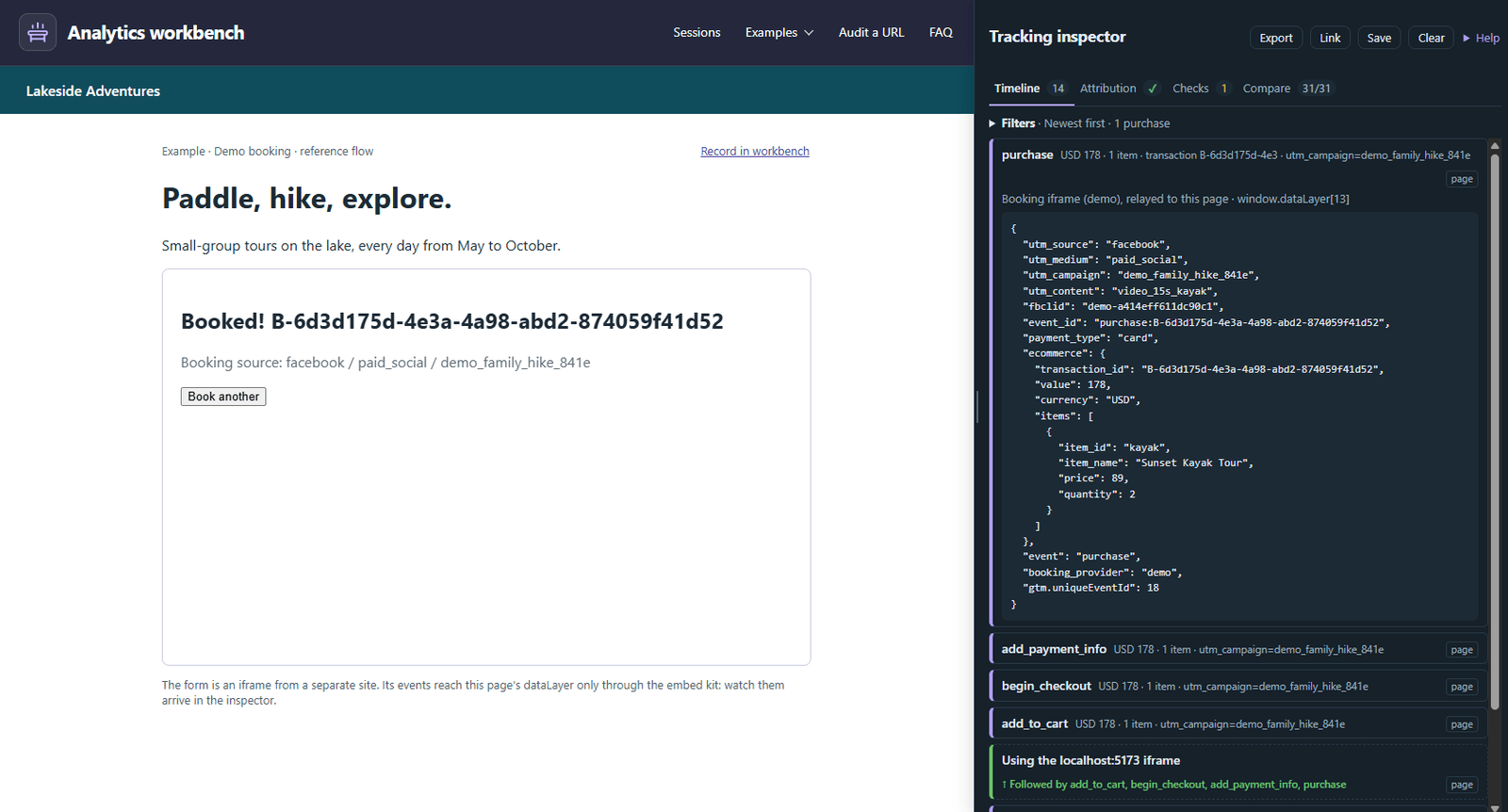
A session opens your URL in that controlled Chrome window, with the workbench's sidebar docked beside the page. As you click through, the timeline fills in newest first:
- dataLayer pushes, from the page and from each iframe, each tagged with the frame it came from.
- Page loads, including pages inside iframes, popups and checkout tabs the site opens.
- Clicks, each followed within a second and a half by what it triggered. "Followed by add_to_cart, begin_checkout" confirms a step works. "No dataLayer event or tag hit followed" flags a button that does nothing for analytics.
- Tag requests to GA4, Google Ads and Meta, with the property or pixel ID, value, currency, order ID and the consent state Google sends with each hit.
Filters hide what you don't need, such as GTM's own internal events, and a frame selector narrows the timeline to the iframe you care about. When you end the session, the recording stays in the workbench for review, comparison and reports.
You can also start a session from embed code instead of a URL. Paste the snippet a vendor gives its customers, optionally with a GTM container ID and campaign parameters, and the workbench serves it on a neutral test page. That shows how an embed behaves on a clean host before anyone puts it on a real site.
Checks: findings you can act on
In a live session, Checks examine the current page: its dataLayer, frames, code and tag requests, plus the published GTM container and each GA4 property's public tag settings. On an ended or imported recording, they run on the recorded events instead. None of that requires a login: the published container and GA4's tag settings are public files that the browser downloads anyway. You can also enter GTM container IDs and GA4 Measurement IDs the page doesn't load, or hides, to check another container or property, and upload a container export to include changes that aren't published yet.
The rules cover the problems that most often break purchase tracking:
- Tags and IDs: containers that fail to load, placeholder IDs, Universal Analytics tags still in the container, and the same GA4 event sent twice from duplicate tags.
- GTM against the dataLayer: triggers waiting for an event name the site never pushes, such as
Purchasewhen the code sendspurchase, and variables reading a key the site spells differently. - Ecommerce payloads: missing or text-valued
value, currency codes that aren't three-letter codes, missingtransaction_idon purchases, missing items, and ecommerce objects that aren't cleared between pushes. - Iframes and campaigns: events stuck inside an iframe, campaign parameters that never reach the iframe, and booking events that don't carry the campaign.
- GA4 settings: purchase not marked as a key event, cross-domain and referral settings, data redaction and session timeout.
- Ad platforms: Google Ads conversion tags missing value, currency or transaction ID, no conversion linker, enhanced conversions settings, and Meta pixels that never track Purchase.
- Consent: missing Consent Mode defaults, and conversions sent with ad storage denied.
Every error and warning comes with numbered steps, and most say where the problem lives: a GTM tag, a GA4 admin screen or the site's code. Fixes that need code also come with a prompt for an AI coding assistant such as Claude or Codex, describing the problem, the page and the constraints to respect.
Severity follows what the recording shows. On a page you only loaded, a checkout event that hasn't happened yet is a note, not a warning. A skipped step only becomes a warning when a later step did happen. Settings that repeat across several GA4 properties are reported once. When a site blocks the workbench, through bot protection or a strict security policy, the finding says so instead of reporting missing tags. And because an ad blocker in your own browser can hide tags too, missing-tag findings ask you to rule that out first.
Attribution: will this booking be credited?
The campaign section lists the UTM parameters and ad click IDs that actually reached the dataLayer, with the entry each value came from. Values that only exist in the URL are shown separately and never count as success, because a campaign in the address bar proves nothing about what the purchase event carried.
The ad conversion section gives a verdict per platform, credited, at risk or lost, built from what happened in the recording. It needs the tag requests, so the full verdict comes from local sessions. It looks at whether the visit came from an ad, whether the purchase carried the click ID, whether the Google Ads conversion or Meta Purchase fired with a value, and whether it was sent with consent.
Compare
Compare lines a recording up against a reference. The reference can be a GA4 purchase-flow standard, a recording you saved as known-good, or another session. You get a score, a row for every expected event marked found, partial or missing, and side-by-side columns with field differences highlighted.
It works well as a release check. Record the flow on staging, compare it with last week's recording, and changes to the booking events and their fields show up before customers find them. New run restarts the original URL or embed in a fresh browser and sets the previous recording as the comparison.
Audit a URL
An audit is a one-page check without clicking. A hidden browser loads the URL, reads the page's code, GTM container and GA4 settings, and runs the same checks. Requests to GA4, Google Ads and Meta are answered locally rather than sent, so an audit doesn't add visits to those reports. The result is a report you can download.
Use an audit for a quick look at any site's setup, and a session for anything that involves a flow. Some sites refuse hidden browsers; for those, a checkbox runs the audit in a visible window. The same audit runs from the command line for scripted checks.
Two problems it makes obvious
The campaign that disappears at the iframe. A visitor lands from a paid search ad with utm_campaign and gclid on the URL. The booking form is an iframe on the vendor's domain, loaded without those parameters. Inside the iframe, the vendor's analytics sees a visit with no campaign, a referral from the host site at best. In the workbench this shows up in two places. The campaign forwarding check reports that the iframe didn't receive the page's UTMs. The Attribution tab shows the purchase arriving with no campaign fields. The fix is specific: forward the campaign parameters into the iframe's src, and relay the purchase back to the host page with the campaign attached.
The purchase counted twice. A host site installs a GA4 purchase tag in its own GTM, which fires when the vendor relays the purchase to the page. Separately, the booking vendor's own Google integration sends a purchase to the same GA4 property from inside its iframe. Both are working as configured. The recording shows two GA4 purchase hits for one booking, one from the page and one from the iframe, and Checks on the recording report that the property received the purchase from two senders. The fix is a choice of sender: keep one GA4 purchase sender per property, and use the relayed purchase for ad platforms if the vendor's integration stays on.
In both cases the recording is the evidence to show a client or a vendor what happened.
The embed kit and a debug link
For booking and checkout products that run in an iframe, the workbench also includes a reference implementation of two small scripts that close it from the vendor's side, without asking each site owner to change anything. A vendor has to ship them:
- A bridge inside the booking app sends each booking event to the host page with
postMessage, only to the host origins configured for that account. - A receiver, loaded by the vendor's existing embed script, accepts messages only from the vendor's origin and from its own iframe, and pushes standard ecommerce events into the host page's dataLayer. It also forwards the page's campaign parameters into the iframe.
With both in place, every step the booking app sends reaches the host page's GTM with the visitor's campaign attached. The demo booking in the online version runs on exactly these files, with the page and the form served from two different sites.
The receiver also supports a debug link that works much like Tag Assistant. The workbench opens a page with a debug parameter, and the receiver streams the events it relays back to the workbench window, iframe included. It is off unless the page was opened by an allowlisted workbench, shows a visible banner with a Stop button while active, sends only the events it already relays, and stores nothing.
The online version
The hosted version is a browser-only edition of the same interface. As an ordinary web page, it has the limit described above: it can't see inside cross-domain iframes or capture tag requests. Within that limit it still does useful work:
- A bookmark: drag it to the bookmarks bar, open any site, and click it. A sidebar docks beside the page and records its dataLayer, clicks and errors. Its Checks tab audits that page. On a site with a strict security policy, it says the site blocked it rather than failing silently.
- Import, Save and Export work as they do locally.
- Checks and Compare run on recordings in the browser. Checks that need a live page, such as reading a GTM container, are left out and labelled as such.
- Two sample recordings show the difference between an embed that relays every step and a vendor widget that passes on only the purchase.
Saving and sharing
Sessions live in memory until you save them. Save keeps a recording as a local file, or in browser storage online, and Export produces a JSON file anyone can import. Locally, reports come out as Markdown: issues by severity, each with its location and steps, and the code prompts collected at the end. That format drops straight into a ticket or a pull request.
No private data online
The online version has no server code, database, accounts or cookies, and runs no analytics of its own. Recordings you import or save stay in your browser's storage, and what the bookmark records stays in that tab. The site's security policy doesn't allow it to send data anywhere. The two sample recordings had account names, IDs, order numbers and session identifiers replaced before they were published.
What it doesn't do
It doesn't edit GTM, GA4 or ad accounts, and it doesn't need access to them. It reads GA4, Google Ads and Meta requests; other ad platforms' tags aren't checked. Its findings describe the data it could see on the pages you recorded, not every page of a site.
Seeing it
The workbench is a private tool I run on my own machine. Like most working tools, it was built quickly to solve a specific problem, not as a full SaaS product. The online demo at analytics-workbench-one.vercel.app shows the same interface with two sample recordings, one from the demo booking on the embed kit and one from a vendor widget without it. Checks and Compare run on both, and the bookmark shows what the browser-only edition can record.